AniList Sync Plugin
The AniList sync plugin synchronizes manga reading progress between Codex and AniList. It supports bidirectional sync of reading status, progress counts, scores, and dates.
Features
- Push reading progress from Codex to AniList
- Pull reading progress from AniList to Codex
- Configurable sync direction (pull only, push only, or both)
- External ID matching via AniList media IDs (
api:anilist) - Highest-progress-wins conflict resolution
Setup
For Users
With OAuth (if configured by admin):
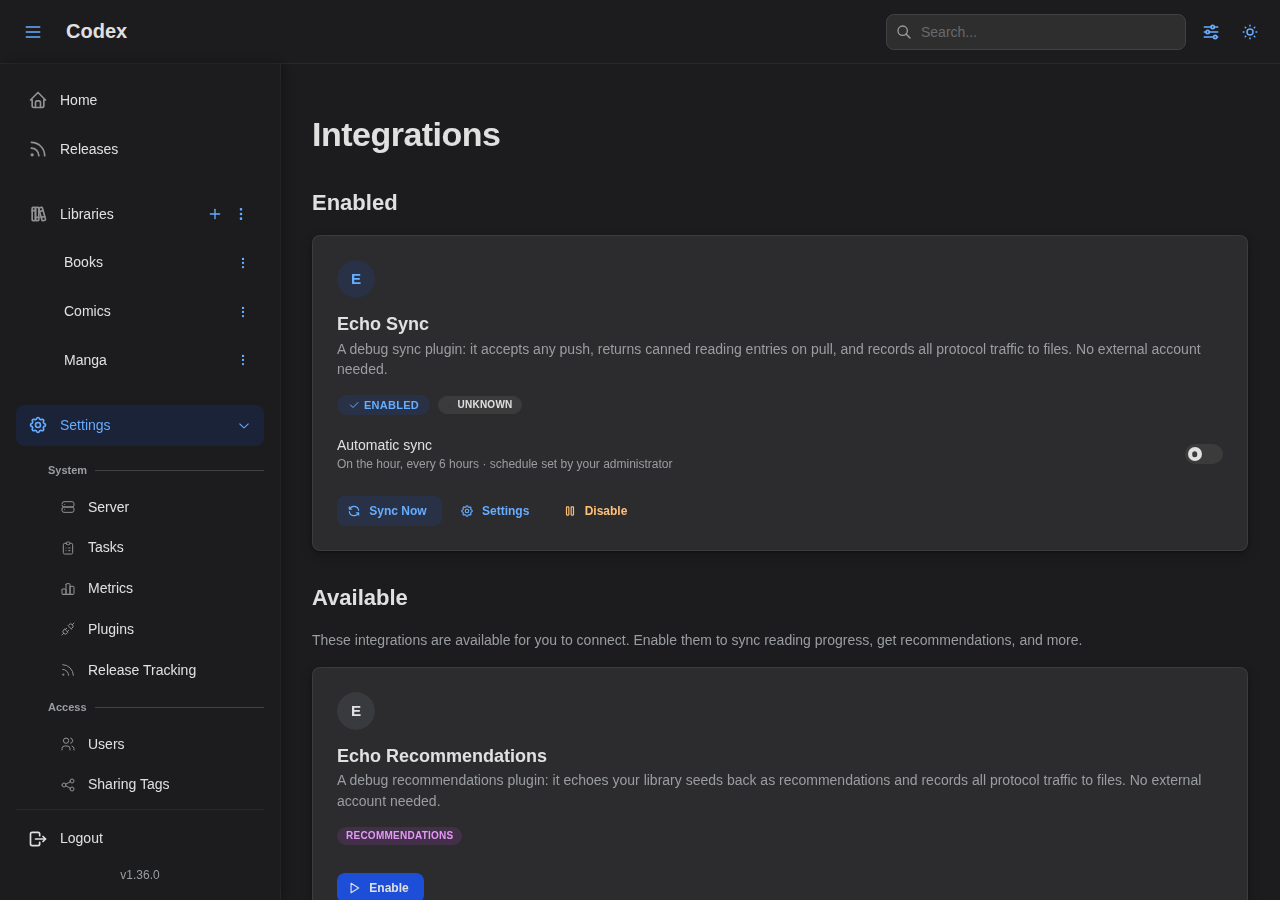
- Go to Settings > Integrations
- Click Connect with AniList Sync
- Authorize Codex on AniList
- You're connected!
With Personal Access Token:
- Go to AniList Developer Settings
- Create a new client with redirect URL
https://anilist.co/api/v2/oauth/pin - Authorize your client and copy the token
- In Codex, go to Settings > Integrations and paste the token
For Admins
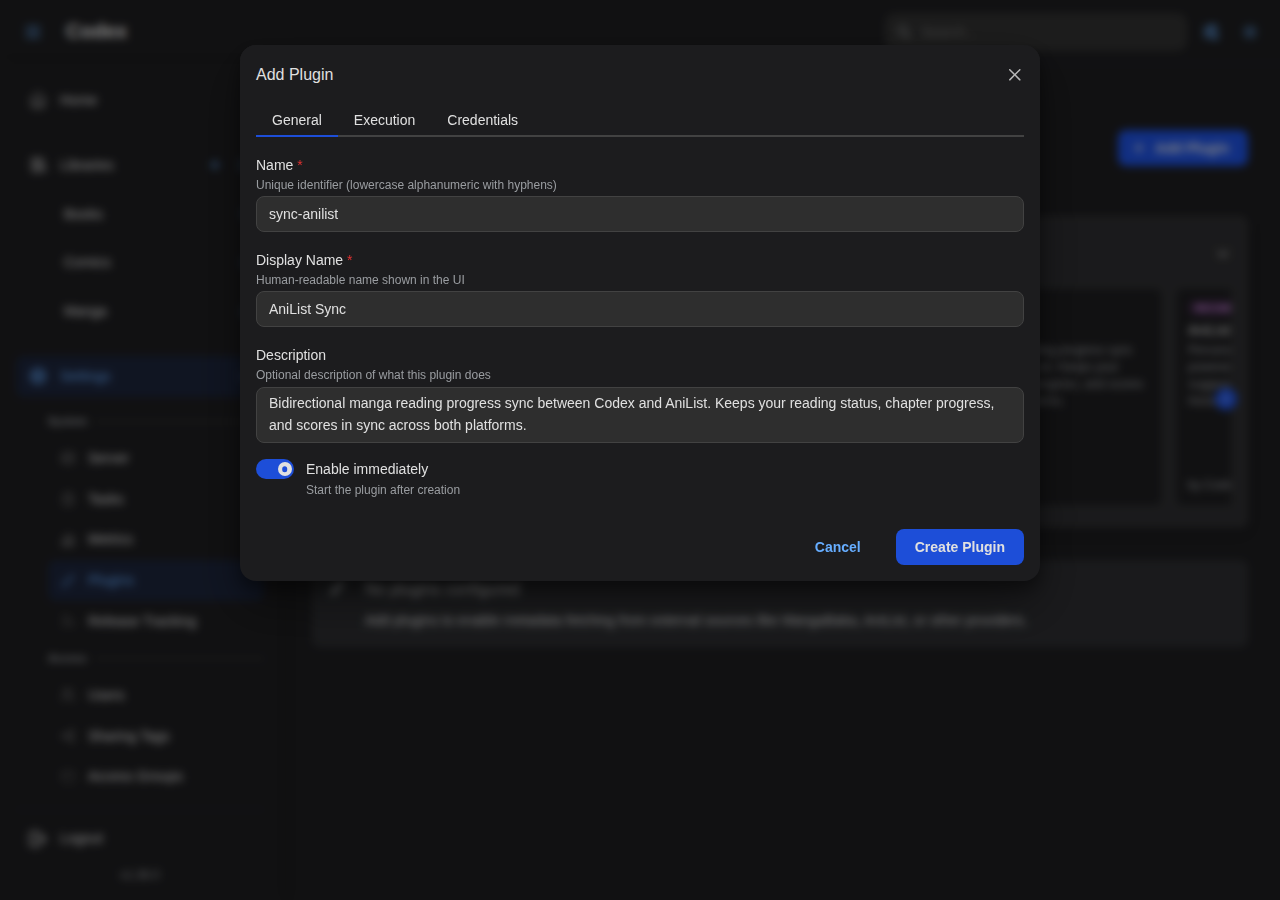
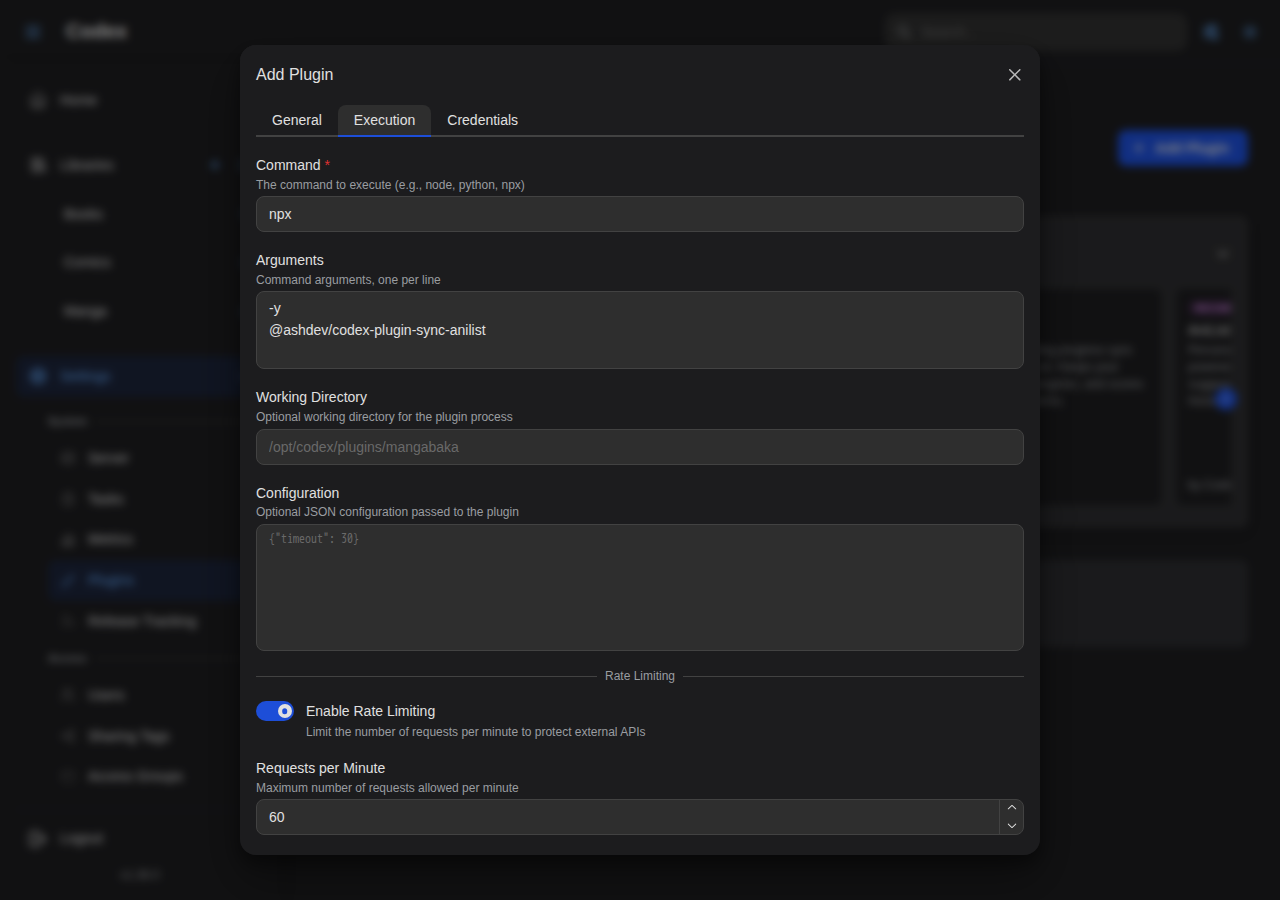
The plugin ships in the official plugin store. Open Settings → Plugins, find AniList Sync in the carousel, and click Add. The pre-filled form has the recommended command and execution settings.
To add it manually:
- Go to Settings > Plugins > Add Plugin
- Set command to
npxwith arguments-y @ashdev/codex-plugin-sync-anilist - Optionally configure OAuth (see the plugin README for details)
How Sync Works
Sync Modes
Configure the sync direction in Settings > Integrations > Settings:
| Mode | Description |
|---|---|
| Pull & Push (default) | Import from AniList, then export to AniList |
| Pull Only | Import from AniList without writing back |
| Push Only | Export to AniList without importing |
Manual vs Automatic Sync
By default, sync only runs when you click Sync Now. If your administrator has set a sync schedule for the plugin, you'll see an Automatic sync switch on your connection card in Settings → Integrations. Turn it on to have Codex sync your AniList progress automatically on that schedule; leave it off to keep syncing manually.
The switch is off by default and only appears once an admin has configured a schedule. Automatic runs use the same sync direction and settings as a manual sync. See Scheduled (Automatic) Sync for the full details.
Sync Flow
When a sync runs in Pull & Push mode, it executes two phases in order:
┌─────────────────────────────────────────────────────┐
│                    Sync Cycle                       │
├──────────────────────┬──────────────────────────────┤
│ Phase 1: Pull        │ Phase 2: Push                │
│                      │                              │
│ 1. Fetch AniList     │ 1. Read Codex progress       │
│    reading list      │ 2. Match series with         │
│ 2. Match entries to  │    external IDs              │
│    Codex series via  │ 3. Build push entries        │
│    external IDs      │ 4. Send to AniList           │
│ 3. Mark matched      │    (overwrites remote)       │
│    books as read     │                              │
│    (additive only)   │                              │
└──────────────────────┴──────────────────────────────┘
External ID Matching
The plugin matches Codex series to AniList entries using external IDs stored in the series_external_ids table with source api:anilist. These IDs correspond to AniList media IDs.
Series without an AniList external ID are skipped during both pull and push.
Conflict Resolution
Codex uses a highest progress wins strategy. There is no manual conflict resolution — progress can only move forward.
How Conflicts Are Resolved
| Scenario | What happens |
|---|---|
| AniList ahead — e.g., 5 vols read on AniList, 3 in Codex | Pull marks books 4–5 as read in Codex. Push sends 5 to AniList. Both agree. |
| Codex ahead — e.g., 5 vols read in Codex, 3 on AniList | Pull tries to mark first 3 as read — already completed, skipped. Push sends 5 to AniList. Codex wins. |
| Both changed — different series or different progress | Pull applies remote progress (additive), then Push sends local state. Codex wins because push runs last. |
Key Behaviors
- Pull is additive only — it marks unread books as read, but never un-reads a book. If you lower your progress on AniList, that change is ignored in Codex.
- Push overwrites the remote — after pulling, Codex sends its current state to AniList. This may overwrite changes made directly on AniList.
- Progress is monotonic — once a book is marked as read (either locally or via pull), sync will not undo it. Progress only moves forward.
If you want to manually manage your AniList list without Codex overwriting it, use Pull Only mode. If you only want to track progress from Codex to AniList without importing, use Push Only mode.
Completed Status
The plugin is conservative about marking series as "Completed" on AniList:
- A series is pushed as Completed only when all local books are read and the series metadata includes a
total_volume_count(ortotal_chapter_count, depending on the configured Progress Unit) that matches the local count. - Otherwise, the series is always pushed as Reading — even if all local books are read — because Codex can't be certain the library contains the full series.
This prevents incorrectly marking a series as finished when you may simply not have all volumes in your library yet.
Sync Settings
Sync settings are split into two categories: Codex Sync Settings (shared across all sync plugins) and Plugin-Specific Settings (AniList-only).
Codex Sync Settings
These settings control which entries Codex sends to the plugin. They apply to all sync plugins, not just AniList. Configure them in Settings > Integrations > Sync Settings:
| Option | Default | Description |
|---|---|---|
| Include Completed Series | On | Include series where all local books are marked as read |
| Include In-Progress Series | On | Include series where at least one book has been started |
| Count Partially-Read Books | Off | Whether partially-read books (started but not finished) count toward the progress number |
| Sync Ratings | On | Include scores and notes in push/pull operations |
These settings are stored in the user plugin config under the _codex namespace (e.g., _codex.includeCompleted). The server reads them to filter which entries to build and send — this is the server's only role. The plugin never reads these settings.
Metadata Enrichment
Some plugins act on richer series data than reading progress alone — for example, a rule-based sync plugin that only syncs series that aren't tagged a certain way. When a plugin declares the wantsFullMetadata capability, the host can attach extra series data to the entries it sends that plugin. Control is split between the admin and the user:
Admin (the plugin's Configure dialog → Metadata Enrichment). Whether each field is sent is the administrator's decision, because the plugin needs the data to function. These are on by default for a capable plugin (so it works out of the box); an admin can turn one off — typically to reduce payload:
| Option | Default | Sent data |
|---|---|---|
| Send tags | On | Each series' tags (small). Lets the plugin apply tag-based rules. |
| Send genres | On | Each series' genres (small). |
| Send metadata | On | Summary, authors, publisher, age rating, language, reading direction. The heaviest one. |
| Allow custom metadata | On | Whether the plugin may receive users' custom metadata at all. A gate on top of the user opt-in — turn it off to forbid custom metadata entirely. |
On a large library, Send metadata can add a lot (summaries are the big field), so an admin may turn it off for plugins that only need tags/genres.
User (your connection → Settings → Metadata Sharing). One field is your call, because it's your data:
| Option | Default | Sent data |
|---|---|---|
| Share custom metadata | Off | Your user-defined custom metadata fields. |
Custom metadata is a free-form field that may hold private annotations, so it is off by default and only you can enable it — even if the plugin wants it. Only turn it on for plugins you trust. (Your administrator can also forbid custom metadata for a plugin entirely via the Allow custom metadata policy above; when they do, your opt-in has no effect.)
All of these are stored under the host-only _codex namespace (admin policy on the plugin's config; the user opt-out on your connection) and are read only by the server when building entries — the plugin never reads _codex directly. The policy applies to both sync and recommendation plugins; for recommendations, genres and tags are sent by default (they're useful taste signal), and an admin can turn them off to trim payload.
Plugin-Specific Settings
These settings are specific to the AniList plugin and control how it interprets the data from Codex. Configure them in Settings > Integrations > Plugin Settings:
| Option | Default | Description |
|---|---|---|
| Progress Unit | Volumes | Whether each Codex book counts as a "volume" or "chapter" on AniList |
| Pause After Days | Disabled | Mark series as "Paused" on AniList if no reading progress for this many days |
| Drop After Days | Disabled | Mark series as "Dropped" on AniList if no reading progress for this many days |
Progress Unit: Volumes vs Chapters
AniList tracks both volume and chapter progress separately. Codex sends the highest read volume and chapter for each series, derived from the volume/chapter numbers detected on your books, and the plugin maps the relevant one to AniList based on your progressUnit setting:
- Volumes (default) — sends the highest read volume as
progressVolumes, the natural mapping for manga volumes. AniList displays this as "Read Vol. X". - Chapters — sends the highest read chapter as
progress. Fractional chapters (e.g. a47.5side chapter) are floored to the last whole chapter. Only use this if your Codex books represent individual chapters rather than collected volumes. AniList displays this as "Read Ch. X".
Because this uses the highest detected number rather than a count of files, progress stays accurate for libraries that don't start at volume 1 or have gaps — e.g. owning and reading volumes 5–8 reports volume 8, not 4. When a book has no detected volume/chapter number, the plugin falls back to the relative count of books read.
Using "chapters" when your books are volumes can create misleading activity on your AniList profile (e.g., showing "Read chapter 3" when you actually read volume 3, which may contain chapters 20–30).
Staleness Detection
When pauseAfterDays or dropAfterDays is configured, the plugin checks each entry's latestUpdatedAt timestamp (the most recent reading progress update in Codex). If the elapsed time exceeds the threshold, the plugin overrides the entry's status before pushing to AniList:
- Drop takes priority — if both thresholds are met, the entry is marked as "Dropped"
- Only applies during push — staleness is not checked during pull
Sync Results
After each sync, you can see a summary in Settings > Integrations:
| Field | Meaning |
|---|---|
| Pulled | Entries fetched from AniList |
| Matched | Pulled entries that matched a Codex series via external ID |
| Applied | Books newly marked as read from pulled data |
| Pushed | Entries sent to AniList |
| Push Failures | Entries that failed to push (e.g., invalid media ID) |
Next Steps
- Plugins Overview — Managing plugins in Codex
- Book Metadata — Book types and metadata fields
- Libraries — Library setup and scanning